How Txt42 works
Txt42 puts two buttons on the toolbar of your editor: AI Chat and AI Actions. Both open a panel beside the content, in the same place, one at a time. This page follows a request from the panel into your content, and says where your text goes on the way.
The chat
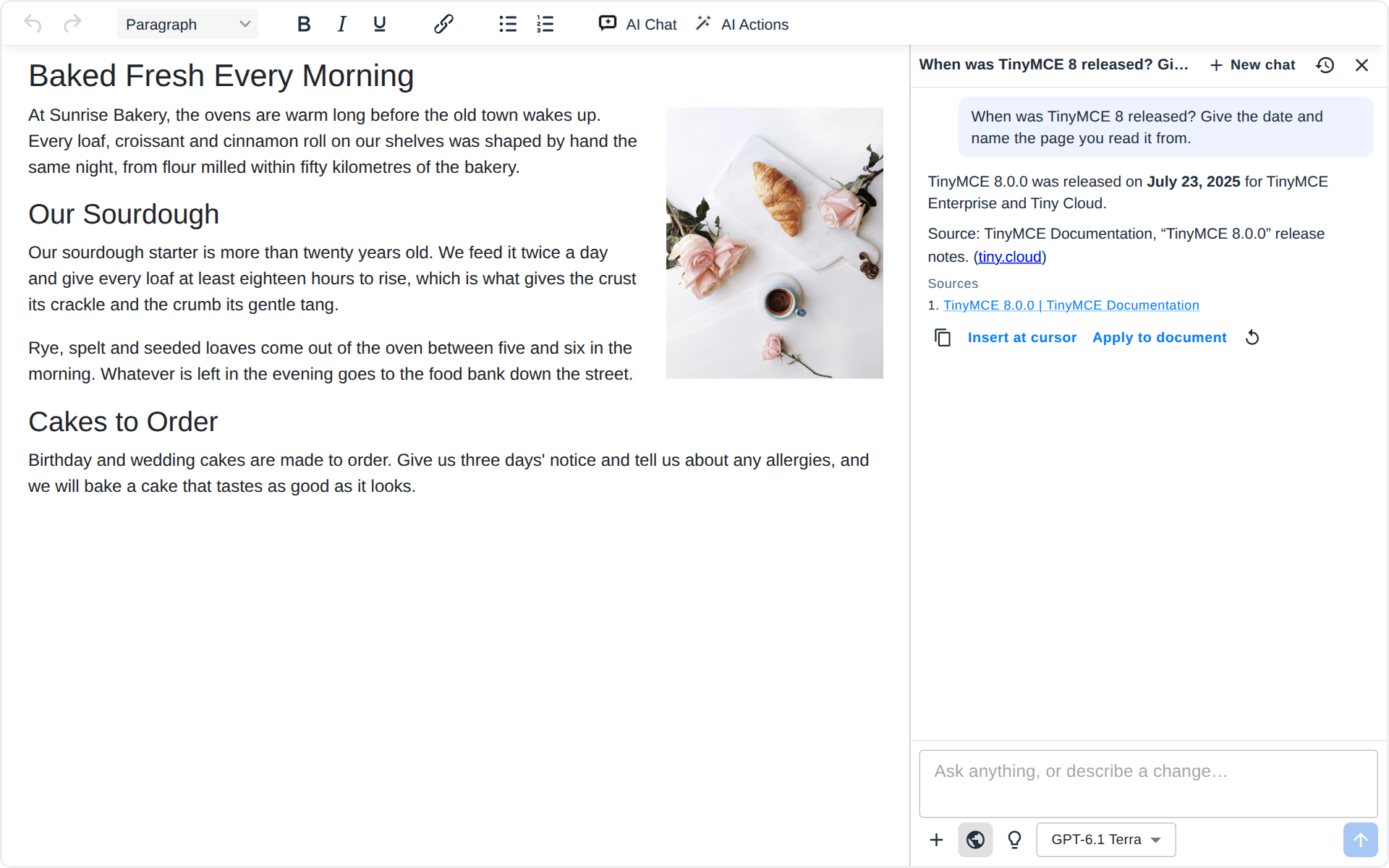
AI Chat, or Ctrl+J (Cmd+J on a Mac) in the content, opens the chat with the cursor in the prompt. Ask anything about the page, or ask for a change: Txt42 answers in the chat, or proposes edits in the document, and decides which from your words. There is no mode to switch.
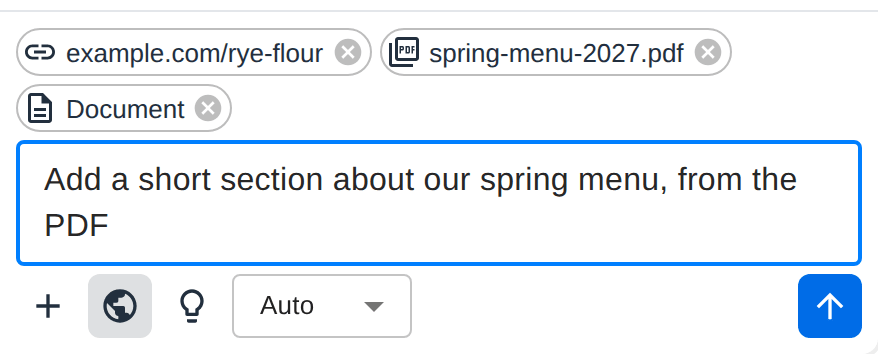
What the chat works on is shown above the prompt:
- Document: the page in the editor, sent with every message. A new chat starts with it; remove it to talk about something else.
- Selection: while text is selected, the chat works on that part of the document.
- the files and links you attached (below).
Under an answer: Copy; Insert at cursor, which puts the answer where the cursor is; Apply to document, which asks again for the same thing as edits to review; and Retry. Over a selection, the Ask AI about the selection button opens the chat about it.
New chat starts again from an empty chat, and History lists the earlier ones. Chats are kept in your browser, not on our servers: see Where your text goes.
AI actions
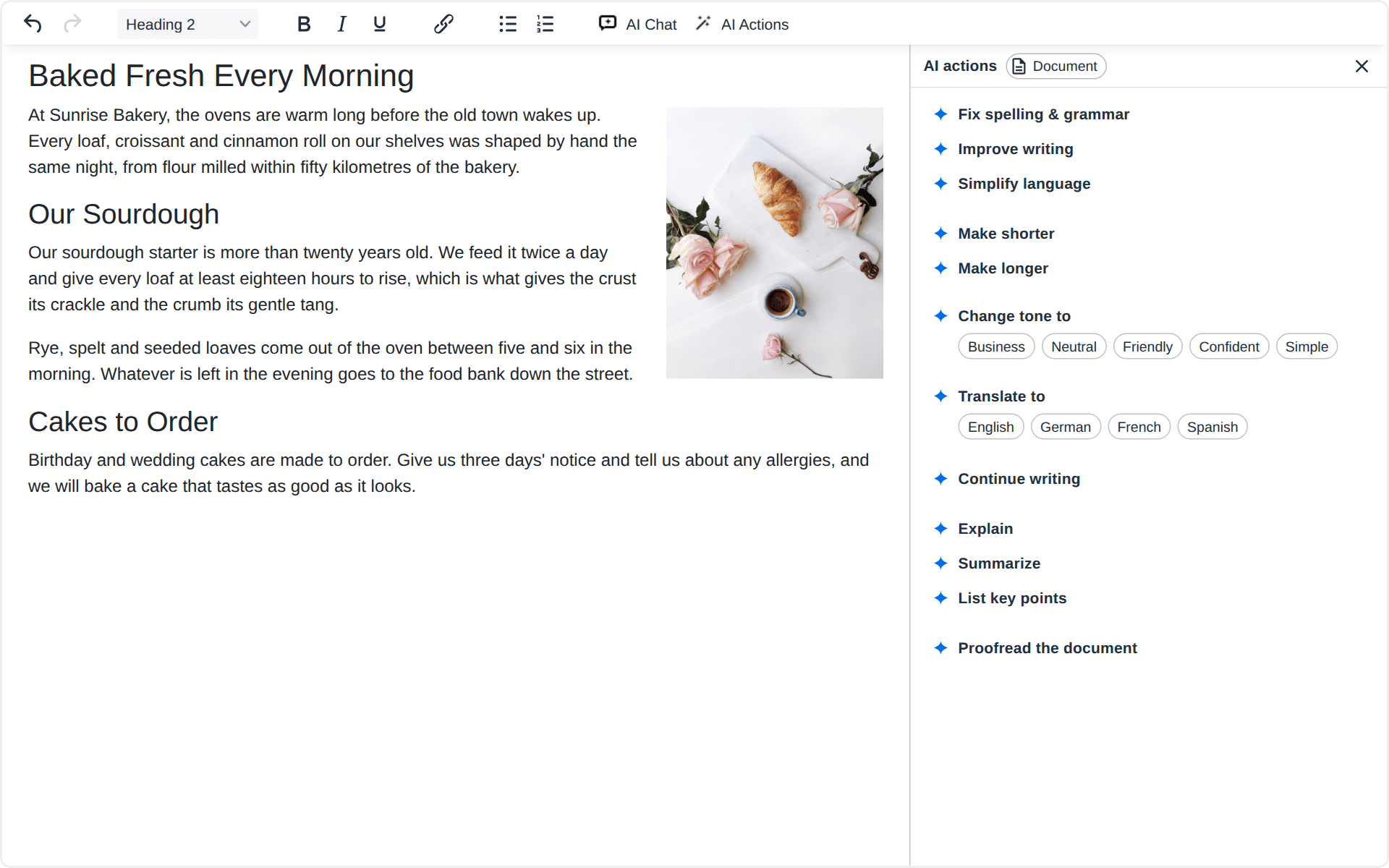
AI Actions opens the list of actions in the chat's place. An action runs at once, without a chat:
- Fix spelling & grammar, Improve writing, Simplify language;
- Make shorter, Make longer;
- Change tone to Business, Neutral, Friendly, Confident or Simple;
- Translate to English, German, French or Spanish;
- Continue writing, at the caret;
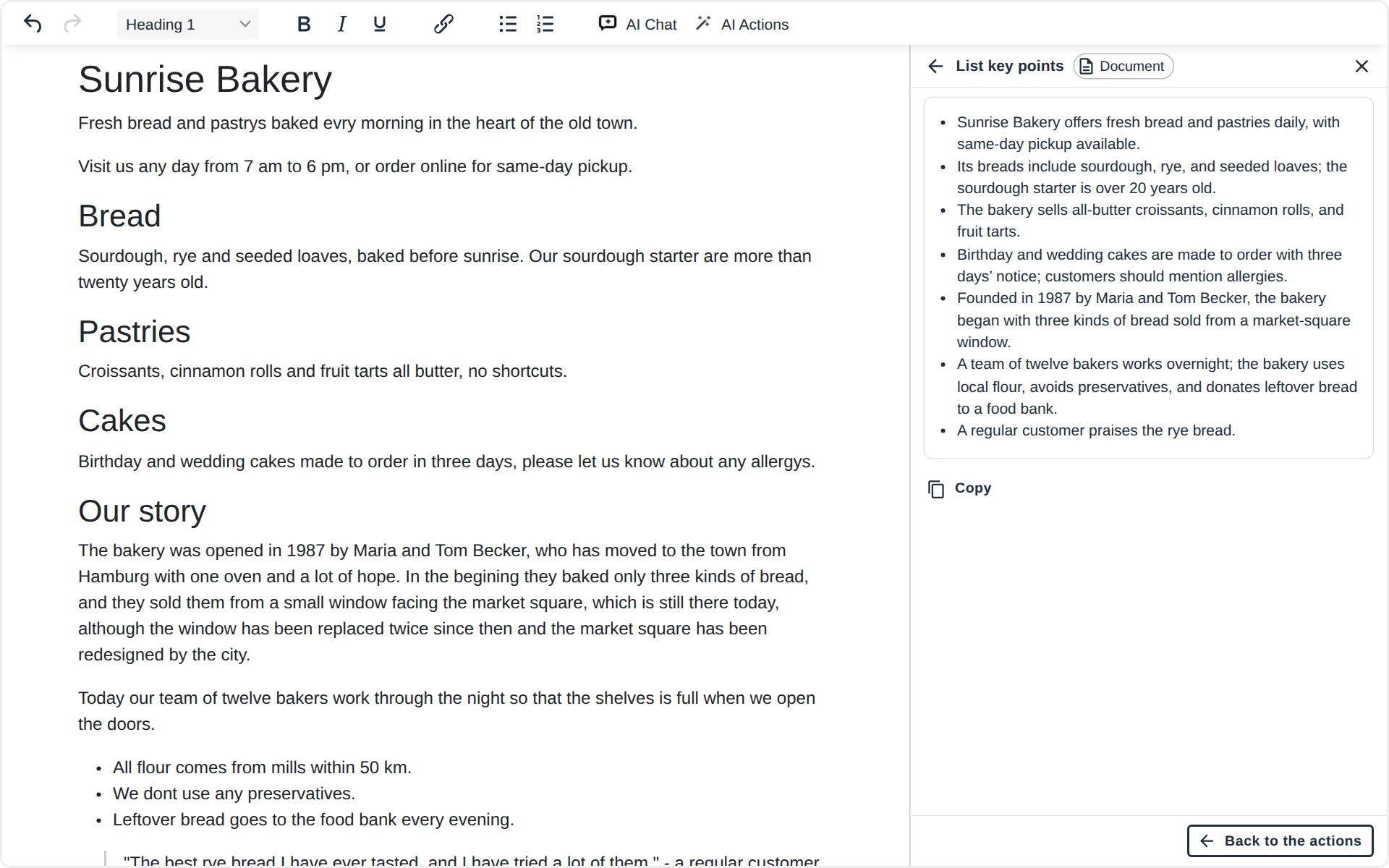
- Explain, Summarize and List key points, which answer in the panel, with Copy, and leave the text as it is;
- Proofread the document, the whole page at once.
With text selected, an action works on the selection; with nothing selected, on the whole document. The badge beside the panel's title says which: Selected text, Document or At the caret. On an Enterprise plan, your company's own actions can join the list.
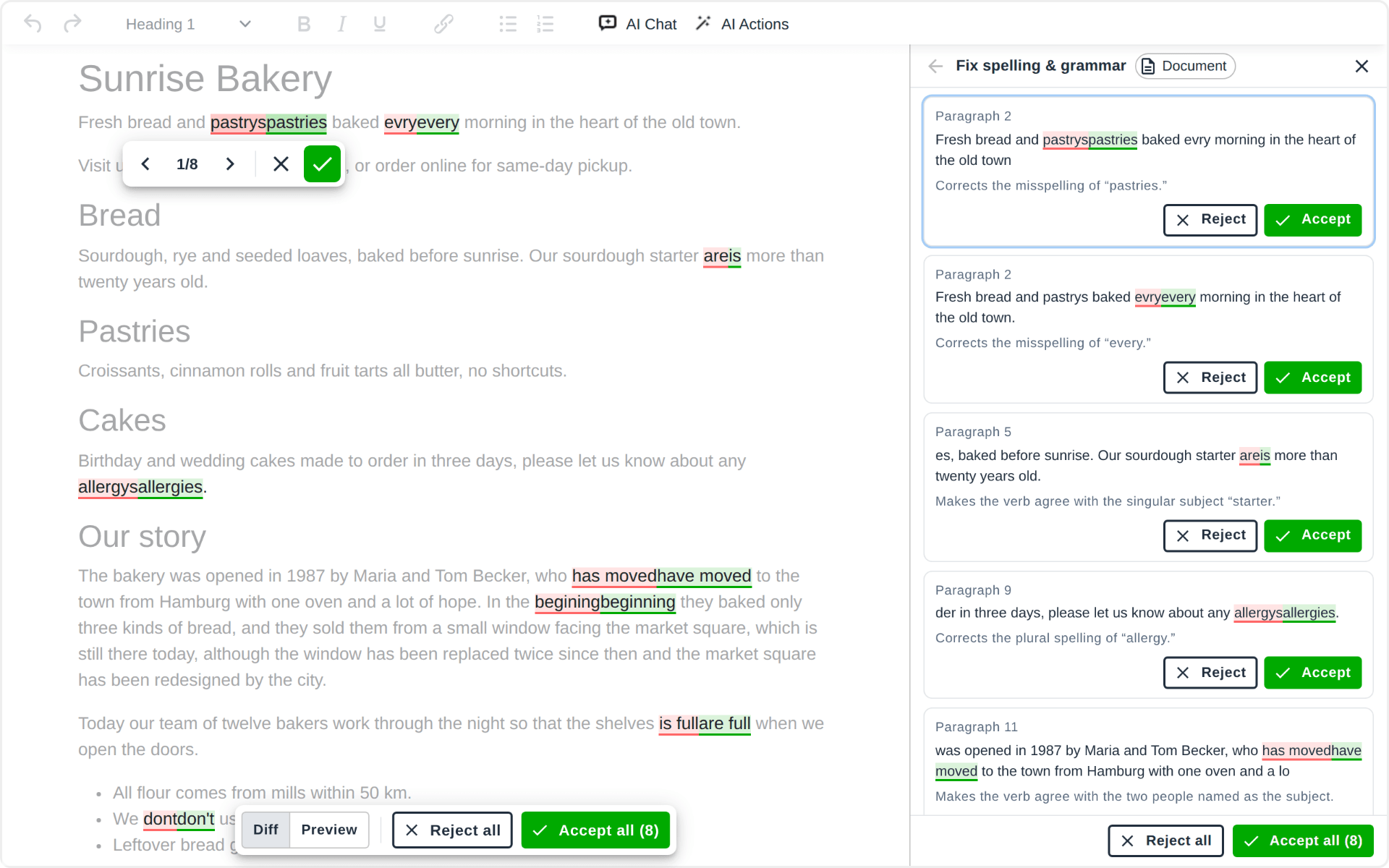
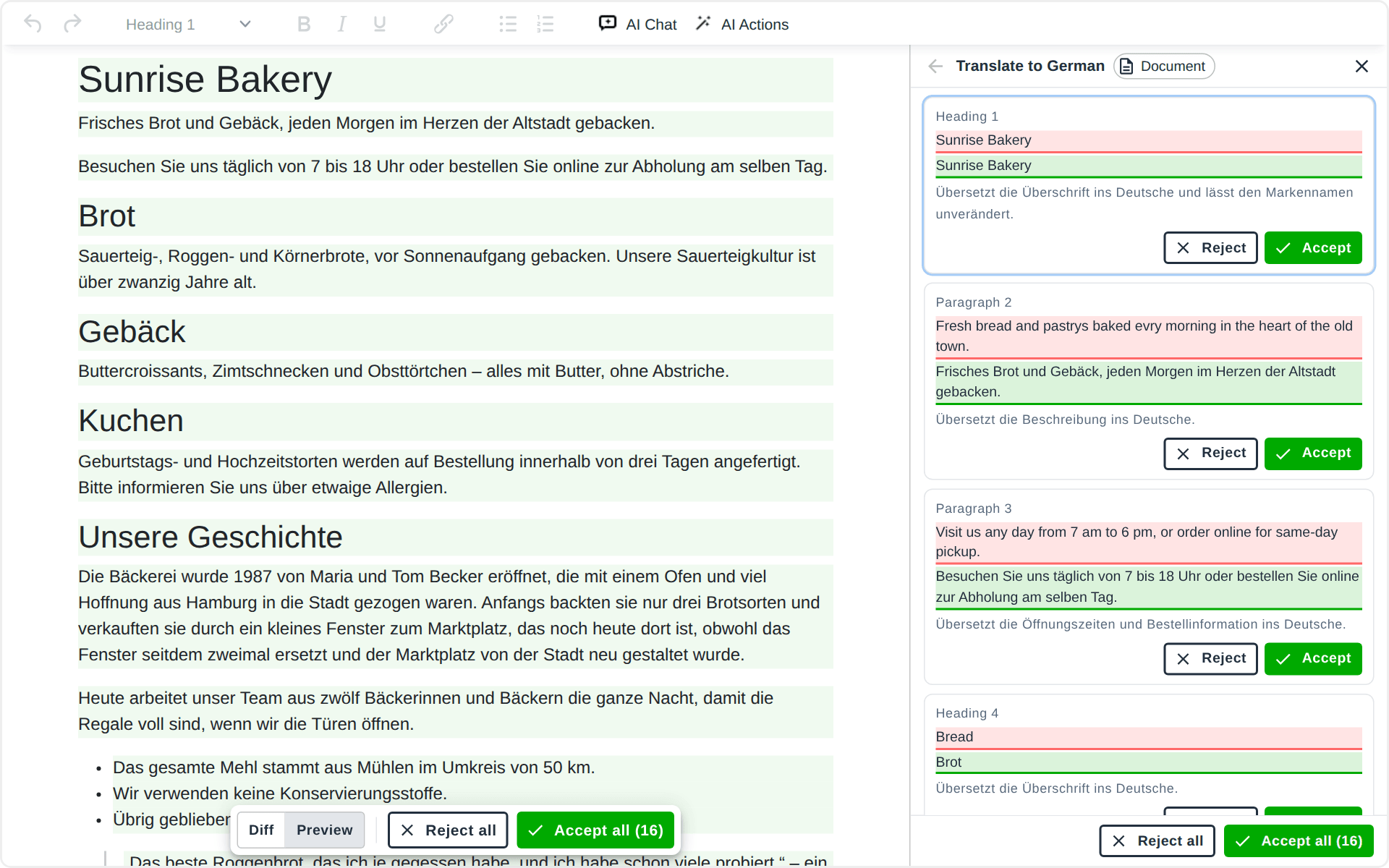
The edits of an action are listed in the panel as cards, each with the change in its words, the reason, and Reject and Accept. An action that answers, like List key points, shows the answer there with Copy. Back to the actions returns to the list.
Reviewing the edits
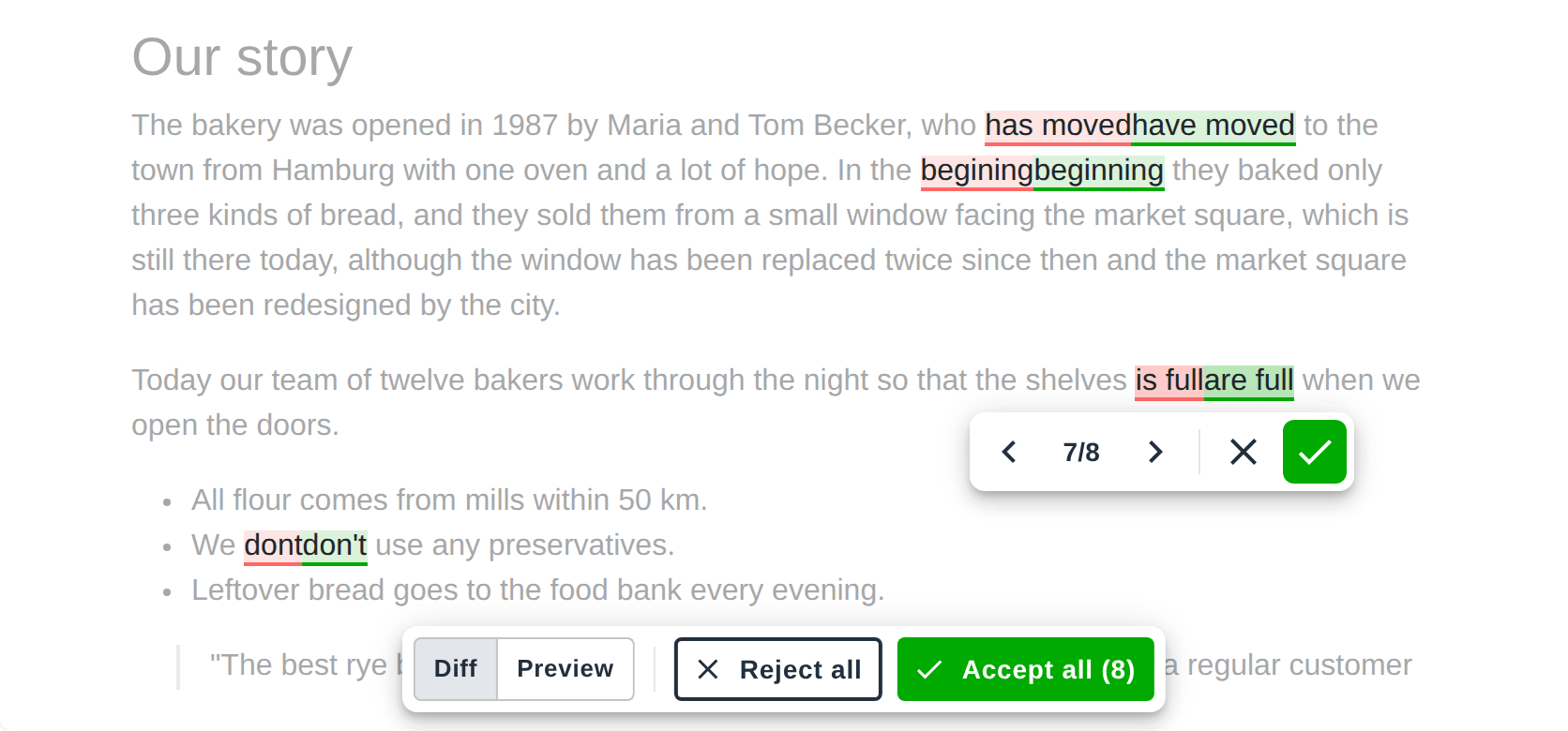
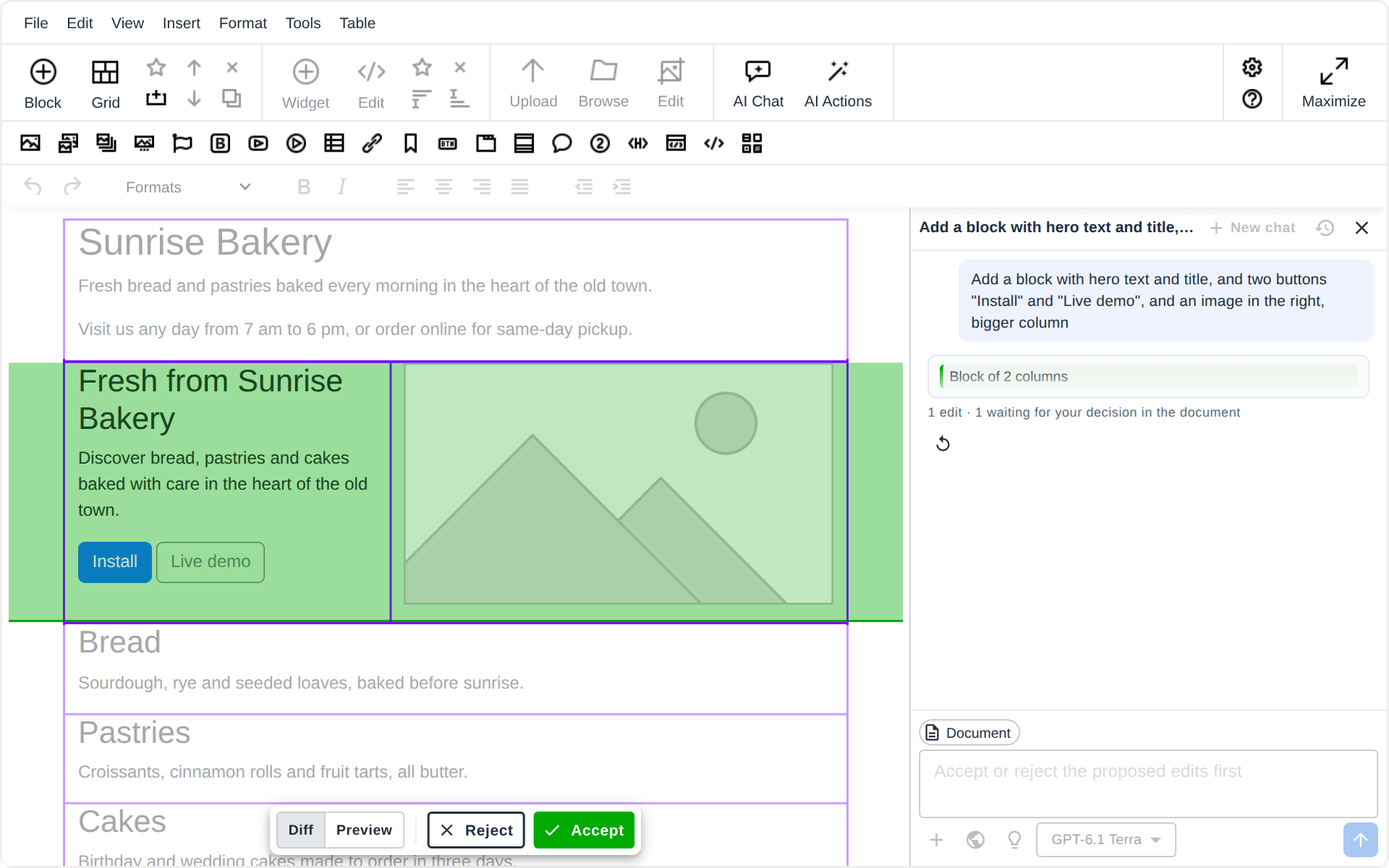
The edits arrive in the content while the answer is written: a deletion is marked red, an insertion green. Nothing has changed in your document yet.
- The edit being decided carries a small control: Previous edit, its place among the edits still waiting (1/8), Next edit, then Reject and Accept. Deciding one moves on to the next.
- A bar at the bottom of the content has Reject all and Accept all, which decide every edit still waiting (Reject the rest, Accept the rest once you have decided some).
- Diff shows the marks; Preview shows the page as it would read with the edits taken.
- A click on a mark, or on a changed block in the chat, selects that edit.
- Esc stops an answer that is still being written.
While edits wait, the content is read-only, so the edits and your own typing never get mixed. When the last edit is decided, the accepted ones are applied together: one change, which one Ctrl+Z takes back.
Files, links and web search
The + button of the composer adds context to a message:
- Files: PDF files, images (PNG, JPEG, WebP), Word documents and text files. A Word document is read in your browser and sent as its text.
- Links: addresses of pages the model reads before it answers (Claude and Gemini models).
The globe turns web search on, for answers that need facts from the web; the pages the answer drew on are listed under it as Sources.
The files of a chat stay in your browser with the chat, so a chat you reopen still has them.
Models and reasoning
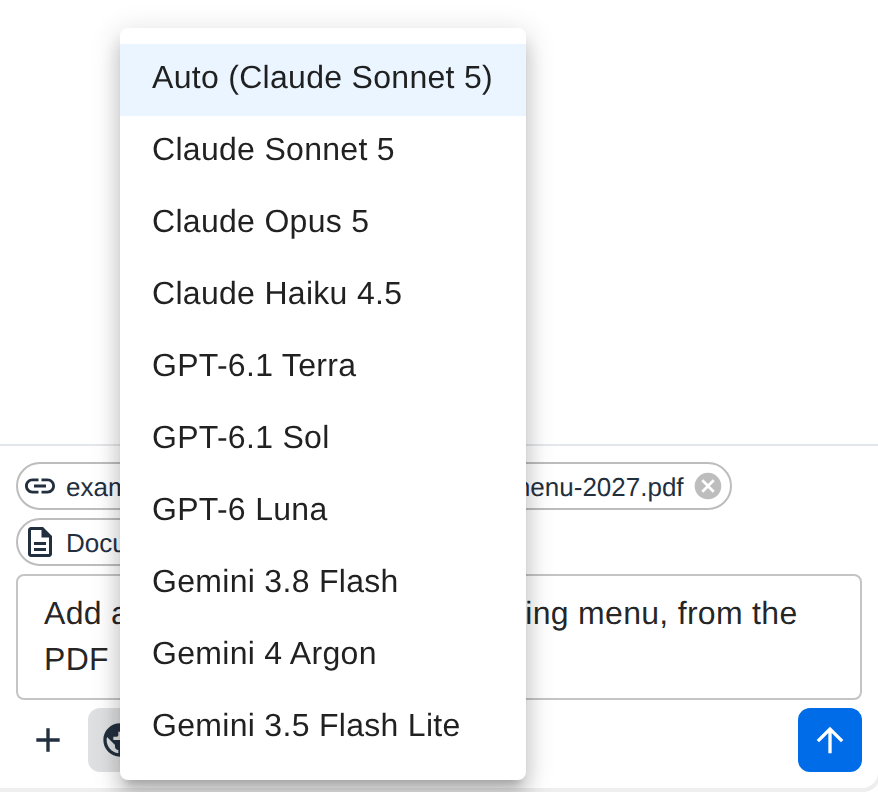
The model button of the composer lists the models of your website: Claude from Anthropic, GPT from OpenAI, Gemini from Google. Auto uses the default model the website set. The bulb turns reasoning on for a model that can think longer before it answers, which helps with hard edits and slows the answer down.
Layouts in N1ED
Txt42 works together with the other plugins of N1ED. With Blk42, on a Bootstrap 5 or Tailwind 4 page, it also builds the page itself. Ask for a block of three columns with a title and a few words in each, a wider column, or a column more or less, and the edit is a real grid block: a container, a row and its columns, ready to edit in N1ED.
The keyboard
| Key | Where | What it does |
|---|---|---|
| Ctrl+J / Cmd+J | in the content | opens the chat, the cursor in the prompt |
| Ctrl+J / Cmd+J | in the chat | closes the chat, back to the content |
| Enter | in the prompt | sends the message |
| Esc | in the prompt | back to the content, the chat stays open |
| Esc | in the content | stops an answer being written |
Where your text goes
- In the browser. The chat collects what the message needs: your words or the action, the document or the selection, the recent messages of the chat and the files and links you attached. The chats and their files are stored in the browser of the person writing, and nowhere else.
- Our AI service. The message goes to our AI service, which checks the API key of your website and its limits, and passes the message to the provider of the model you picked. It stores none of it: the next message brings its own context again. What we count is the usage of each key, never the content.
- The provider. Anthropic, OpenAI or Google answers, and the answer streams back to the editor the same way. The provider sees our service, not the addresses of the people writing, and a random id per person instead of a name.
- Your content. Nothing reaches your document until you accept it, and what you accept is plain HTML.
The API keys of the providers are read by our AI service only; they never reach the editor or the page. On the Enterprise plan they are your own keys, so the AI usage is billed to your provider accounts: see Configuration.
If your website sends a Content-Security-Policy, allow https://ai.n1ed.com in connect-src.